How to Scan a QR Code From a Photo or Screenshot
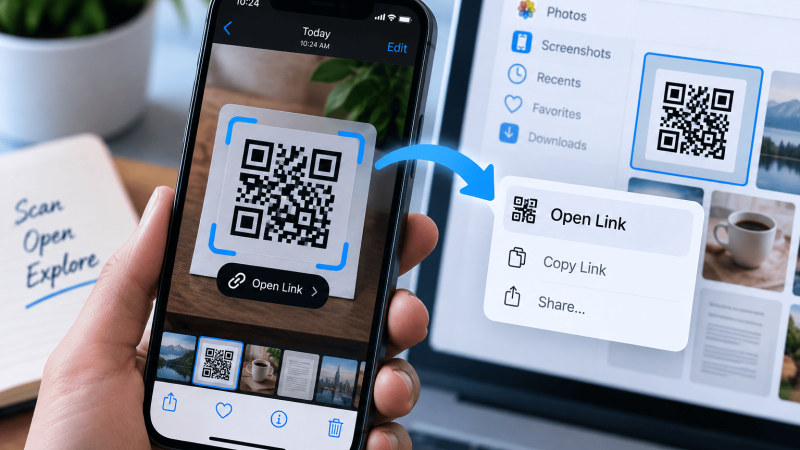
The code is already inside an image: a screenshot of a booking page, a photo of a poster you took in a hurry, a PDF ticket open on your laptop, a picture a friend sent in WhatsApp. The camera app is no use, because there is nothing in front of it to point at. To scan a QR code from a picture you need something that reads codes out of image files rather than out of the live camera, and every phone already has it.
The fastest route on each device
| Where the code is | iPhone | Android |
|---|---|---|
| Saved in your photo library | Photos, open it, tap the code | Google Photos, open it, tap Lens |
| On screen right now | Screenshot, then open in Photos | Long press the home button or use Circle to Search |
| On a web page | Save the image, then Photos | Long press the image, Search with Google Lens |
| On a computer | Point the phone at the monitor | Right click in Chrome, Search with Google Lens |
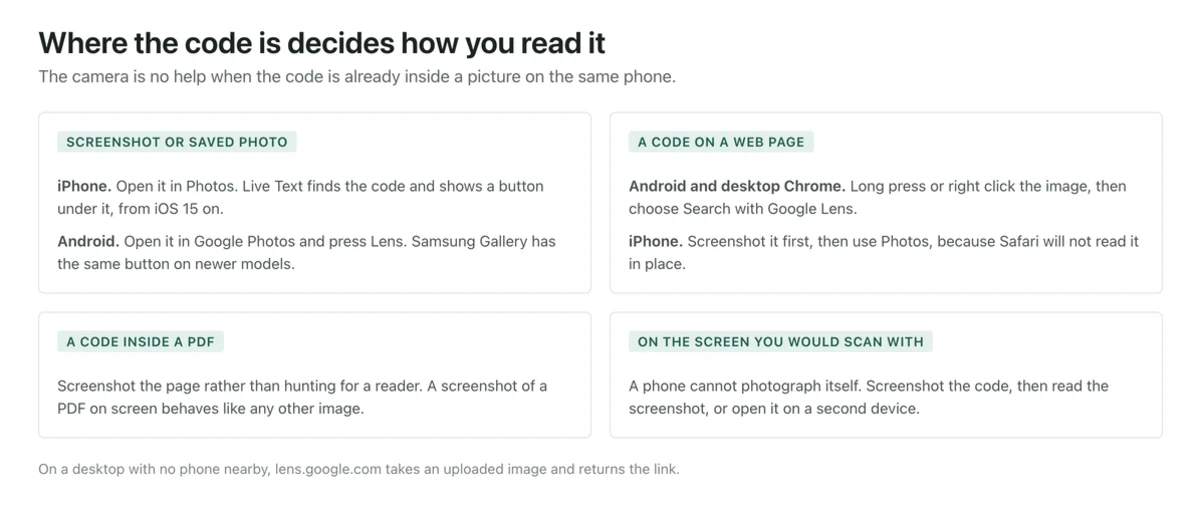
iPhone, iOS 15 and later
Live Text does this, and most people never notice it is there because there is no obvious button.
- Save the image first if it arrived in Messages, Mail, or WhatsApp. In Messages, press and hold the picture and choose Save; in WhatsApp, tap the image, then the share icon, then Save.
- Open Photos and open the picture full screen.
- Tap directly on the QR code. A yellow or white outline appears around it with the destination shown, usually as a small button such as Open in Safari.
- If nothing happens on the first tap, pinch to zoom in on the code so it fills more of the screen, then tap again. If there is a Live Text button in the lower right, the small square with lines inside it, tap that to wake detection up.
The same trick works beyond the Photos app. Safari recognizes codes inside images on a web page if you press and hold them, and Quick Look does it when you open an image or a PDF attachment from Mail or Files. A PDF ticket is worth trying directly before you screenshot it, since the code is usually drawn at a higher resolution inside the document than on your screen.
Before iOS 15
Older iPhones have no image detection at all. The Code Scanner you can add to Control Center reads the live camera only, so it will not help with a saved picture. Two routes work. Install Google Photos or the Google app, open the picture inside it, and tap the Lens icon. Or display the image on a second screen, a laptop or another phone, and scan it with the Camera app the ordinary way. Our iPhone scanning guide covers the live camera side in full.
Android
Everything here goes through Google Lens, which is built into several apps under different names.
From your gallery
- Open Google Photos and open the picture.
- Tap Lens in the row of buttons along the bottom. On some builds it sits behind the three dot menu.
- Lens scans the image and shows the link as a card at the bottom. Tap it to open.
On Samsung phones the Gallery app offers Lens on recent One UI versions, sometimes under the More menu. If you cannot find it, open the same image in Google Photos and use the steps above rather than hunting through menus.
From a web page in Chrome
Press and hold the image and choose Search with Google Lens from the menu that appears. Chrome sends the picture to Lens without you saving anything, and the decoded link comes back as a result card.
From the Google app
Open the Google app, tap the camera icon in the search bar, then tap the photo picker in the corner of the viewfinder and choose the image. This is the route to remember when the picture is somewhere odd, such as a download folder or a messaging app that will not share into Photos.
For codes in the real world, the Android camera walkthrough is the shorter path.
The code is on the same screen that would have to scan it
This comes up constantly: a code arrives in a chat, or an airline shows one inside its own app, and there is one phone in the room.
On iPhone, take a screenshot, press the side button and the volume up button together, then open Photos and tap the code as above. Zoom the image on screen before you take the screenshot if the code is small, because the screenshot captures what is displayed, not the original file.
On Android, you can skip the screenshot. Press and hold the home button, or swipe up and hold from the bottom on gesture navigation, to bring up the assistant, then choose the Lens or screen search option. On Pixel and recent Samsung handsets this is Circle to Search, and it reads a code sitting anywhere on the current screen. A screenshot into Google Photos works everywhere else.
On a desktop computer
There is no camera involved, so you need something that takes an image file.
In Chrome, right click the image on the page and choose Search with Google Lens. A panel opens at the side and the decoded link appears there. If the code is in a file rather than on a page, open lens.google.com and drag the image into the upload box, or open the screenshot in a browser tab first and right click it there.
Web-based readers that accept a file upload also work, and are the only option on a locked-down work machine where Lens is blocked. Honest warning: an uploaded image leaves your computer, so for anything sensitive, a boarding pass or an account setup code, use the phone route instead.
The low-tech answer is often the fastest. Open the image on the monitor, zoom it until the code is a few centimeters across, turn the brightness up, and point a phone at it. Keep the phone straight on to avoid reflections, and far enough back that the whole code and its white margin are in frame.
When the image will not decode
The symptoms tell you which problem you have.
Nothing at all happens, on any app. The code is probably too small in pixels. A code that is 80 pixels across has lost the detail no amount of zooming brings back, because zooming enlarges what is already there. Go back to the source: ask for the original file rather than a forwarded screenshot of it, or open the page and screenshot it again after zooming in.
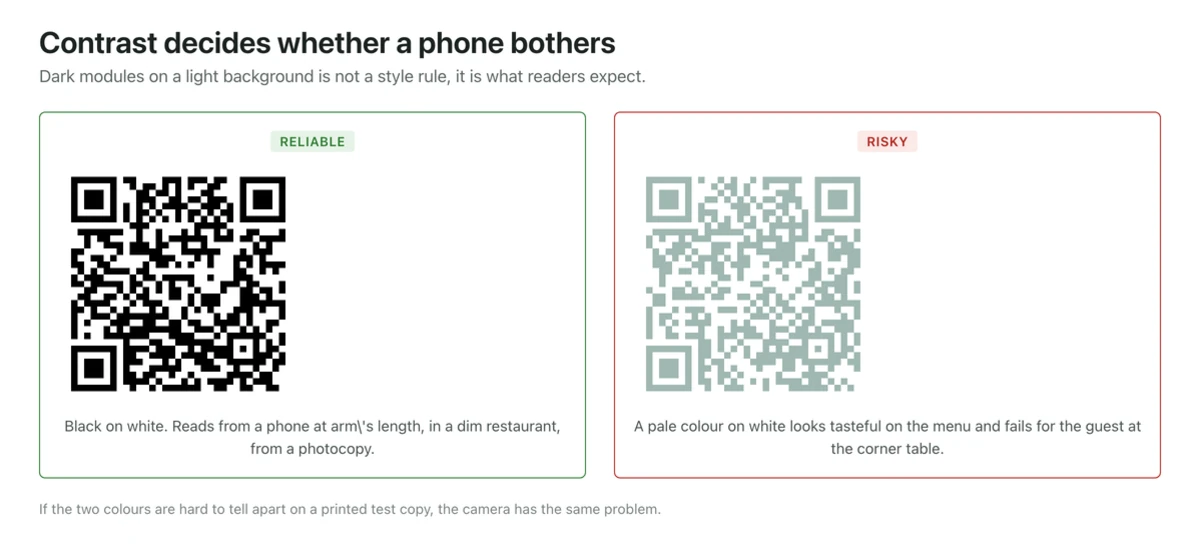
It scans in one app and not another. Usually contrast. Codes printed in light gray on white, or in a pale brand color, sit right at the edge of what a decoder accepts. Increase contrast in any photo editor and try again.
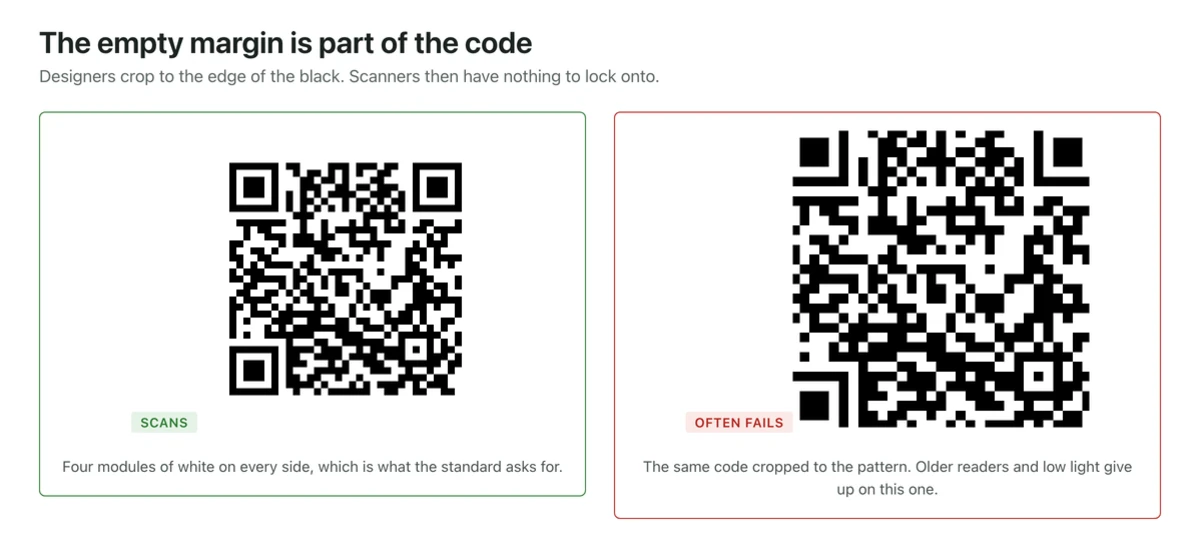
The code has no white margin. Someone cropped tight to the pattern and cut into the quiet zone, the four modules of blank space the format requires on every side. Decoders lose the edges of the grid. Paste the code into a larger white canvas, or open it in any editor and add a white border about a fifth of the code width all around, then try again. This is also why codes fail in print so often.
The code is light on dark. Inverted codes, white pattern on a black background, are readable by some decoders and invisible to others. Invert the colors of the image in an editor so it becomes dark on light. On an iPhone you can also try Settings, Accessibility, Display and Text Size, Smart Invert, then look at the image again.
The photo of the poster is blurry or skewed. Retake it if you can, straight on, with the whole code in the frame and a moment for the camera to focus. Error correction handles a damaged code, not an out of focus one; a blur smears the boundary between modules and there is nothing to recover.
A logo covers the middle. Error correction at level Q tolerates roughly a quarter of the grid being unreadable, so a large logo on a code generated at a lower level leaves nothing to work with. There is no fix on the reading side. The code has to be made again.
Read the link before you tap it
A QR code is not encrypted and holds no proof of who made it. Every app above shows the decoded address before it opens anything, and that half second is the whole of your protection. Treat any code that leads to a payment or login form as suspect until you have checked the domain yourself.
The same logic applies in reverse when you send one. A code you email as a picture can be decoded by anyone who receives that email, forever, so keep private data out of it.
Common questions about scanning from images
How do I scan a QR code from a screenshot without installing anything?
On iPhone with iOS 15 or later, yes: the Photos app does it with a tap. On Android you need Google Lens, which is already on nearly every phone through Google Photos, Chrome, or the Google app.
Why does my phone see the code on paper but not in the photo?
The live camera decodes at full sensor resolution and refocuses until it succeeds. A saved image gets one attempt at whatever resolution it was saved at. If the picture was compressed by a messaging app, the fine detail may simply not be there.
How do I scan a code inside a PDF?
Open the PDF on the phone and tap the code directly. iOS reads codes inside PDFs through Live Text, and on Android you can screenshot the page and run it through Lens. On a computer, right click and use Google Lens, or zoom the PDF and point a phone at the screen.
Can I scan a code from a video?
Pause on a frame where the code is sharp and fully visible, screenshot it, then use the steps above. Codes that flash past in a second of video are usually motion blurred, and no decoder recovers that.
The code decoded but the link is dead.
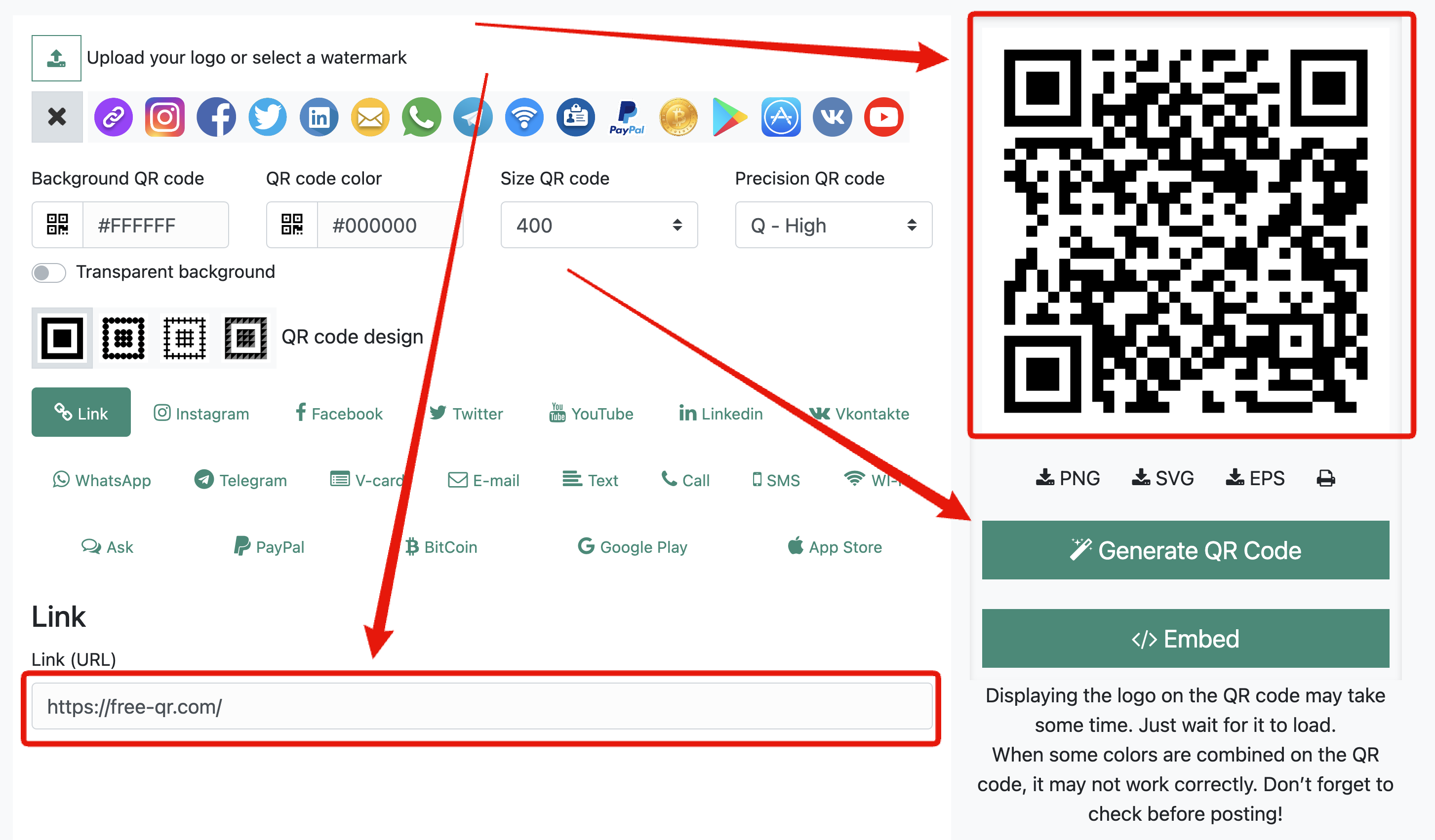
The image is fine and the destination is the problem. That is common with dynamic codes, which point at a redirect service that can be switched off or expire. A static code carries its destination in the pattern itself and cannot be turned off by anyone, which is one reason to prefer it for anything printed. If you need to make your own, the generator is free and checks in your browser that the finished code reads back before you download it.





Comments are closed.