LinkedIn QR Code: The App Code and a Printable One
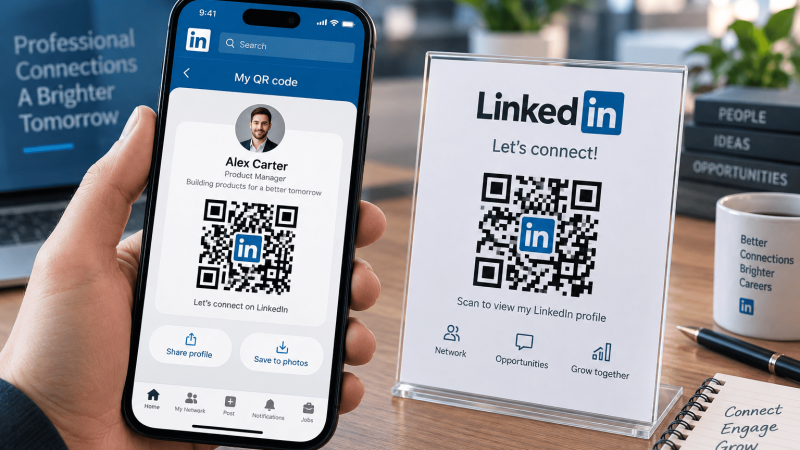
Two people at a conference, both holding drinks, both trying to spell a surname into a search box. That is the moment LinkedIn’s QR code was built for, and it handles it well. It handles almost nothing else, which is why the second half of this guide is about printing a different code entirely.
Finding the LinkedIn QR code in the app
Open the LinkedIn app on iPhone or Android and look at the search box at the top of the feed. There is a small QR icon at its right edge. Tapping it opens a screen with two tabs: one showing your own code, one turning on the camera to scan somebody else’s. The layout is the same on both platforms, and there is a share option on the code tab that saves the image to your phone or sends it in a message.
Your colleague taps the scan tab, points at your screen, and your profile opens on their phone with the connect button ready. No typing, no wrong Michael Chen. That is the whole feature, and for an in-person introduction it is faster than anything else LinkedIn offers.
Where that code stops being useful
The in-app code is designed for app-to-app. Point a plain camera at it and the result is unpredictable: often a linkedin.com address that opens in the browser and immediately asks the viewer to sign in or install the app, sometimes with tracking parameters attached that tell LinkedIn the scan came from a shared code. Somebody who is not a LinkedIn member, or who is signed out, hits a wall instead of your profile.
It also only ever points at one thing, your profile. It cannot point at a portfolio, a booking page, a case study or a company page you actually want people to see. And it exists on a screen. Printing a screenshot of it onto a badge gives you a code drawn inside LinkedIn’s card, with branding crowding the margin the code needs, at whatever resolution your phone happened to capture.
Get your clean public profile URL
A printed code should point at a short, permanent, human-readable address. That is your public profile URL, and it looks like linkedin.com/in/your-name.
On desktop, open your profile and look at the right rail for Edit public profile & URL. The panel that opens shows the address and lets you change the slug once you have claimed a decent one. In the mobile app, the profile share sheet gives you the same address with luggage attached: copies made from the app frequently carry something like ?utm_source=share&utm_medium=member_ios&utm_campaign=share_via, and links copied from search results can carry a trk= parameter.
Delete everything from the question mark onward. Those parameters exist to attribute the click back to LinkedIn’s own sharing tools, they make the address longer, and a longer address means a denser grid of modules in the printed code. Density is the difference between a code that scans off a business card at arm’s length and one that does not. Check the trimmed address in a private browser window before you commit it to print: it should open your profile for somebody who is not signed in.
Making the printable code
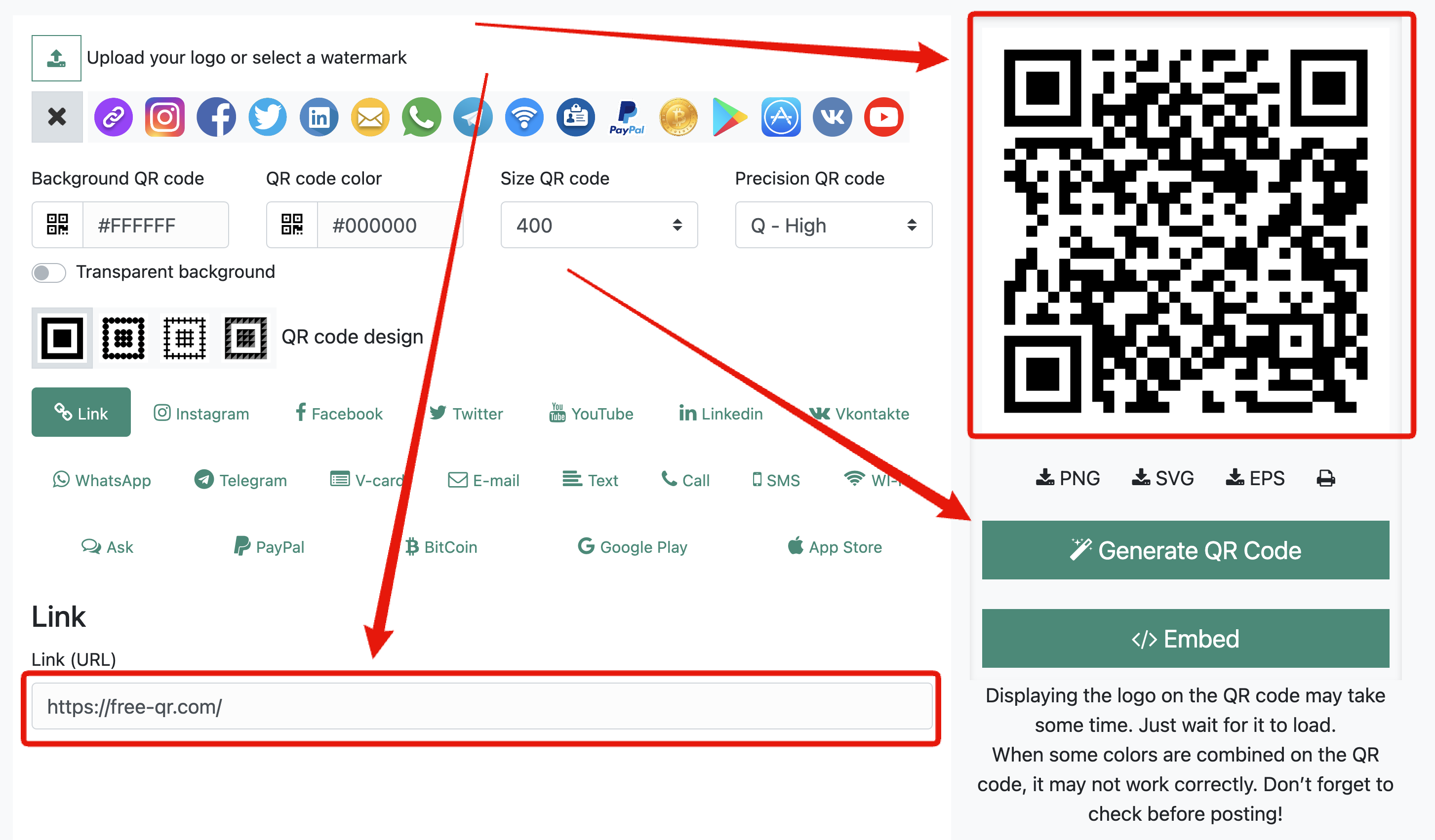
Paste that URL into the QR code generator, which produces a static URL code with no account, no watermark, no expiry and no scan limit. Then set it up for print rather than for a screen:
- Download SVG or EPS, not PNG. Vector artwork survives being scaled up for a pull-up banner and survives a print shop resizing it without asking. The format comparison spells out which file to hand over where.
- Keep it dark on light. Brand colors are fine as long as the contrast stays strong. Pale gray on white is the classic way to ruin a batch of 500 cards.
- Leave the quiet zone alone. Four modules of clear space on every side, which is roughly four of the small squares. Designers crop into this constantly because it looks like wasted room.
- A center logo is fine, within reason. Error correction Q, which is preselected on the generator, tolerates roughly a quarter of the grid being unreadable, so a modest logo in the middle is safe. Covering half the code is not.
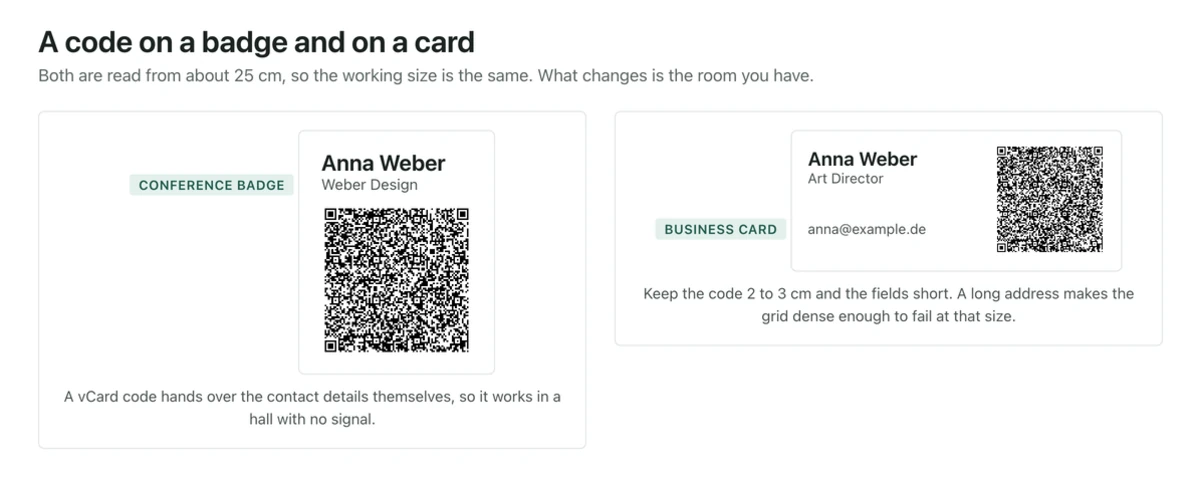
- Size by distance. Scan distance divided by ten. A badge or business card scanned from 30 cm wants about 3 cm of code, a slide read from six meters back wants 60 cm, and under 2 cm nothing reliable happens at arm’s length.
Then test it. Scan the actual printed proof, not the screen, with an iPhone and with an Android phone, indoors and under the kind of lighting a conference hall has. The printing checklist covers the rest of the failure list, including the laminate glare that kills codes on badges.
Scanning on iPhone and Android
iPhone
The Camera app reads QR codes with no extra software since iOS 11: point, wait for the banner, tap. If somebody photographs your badge instead of scanning it live, they can still open the picture in Photos and hold a finger over the code, because Live Text has read codes inside saved images since iOS 15. If the banner refuses to appear, the QR toggle in Settings under Camera is the first thing to check.
Android
Stock cameras on Android 9 and later scan codes directly, though several manufacturers ship the feature switched off, and it lives in the camera app settings rather than in system settings. Anything older goes through Google Lens. A screenshot of a badge opens in Google Photos, where the Lens button reads the code out of the image.
Profile link or vCard: pick one deliberately
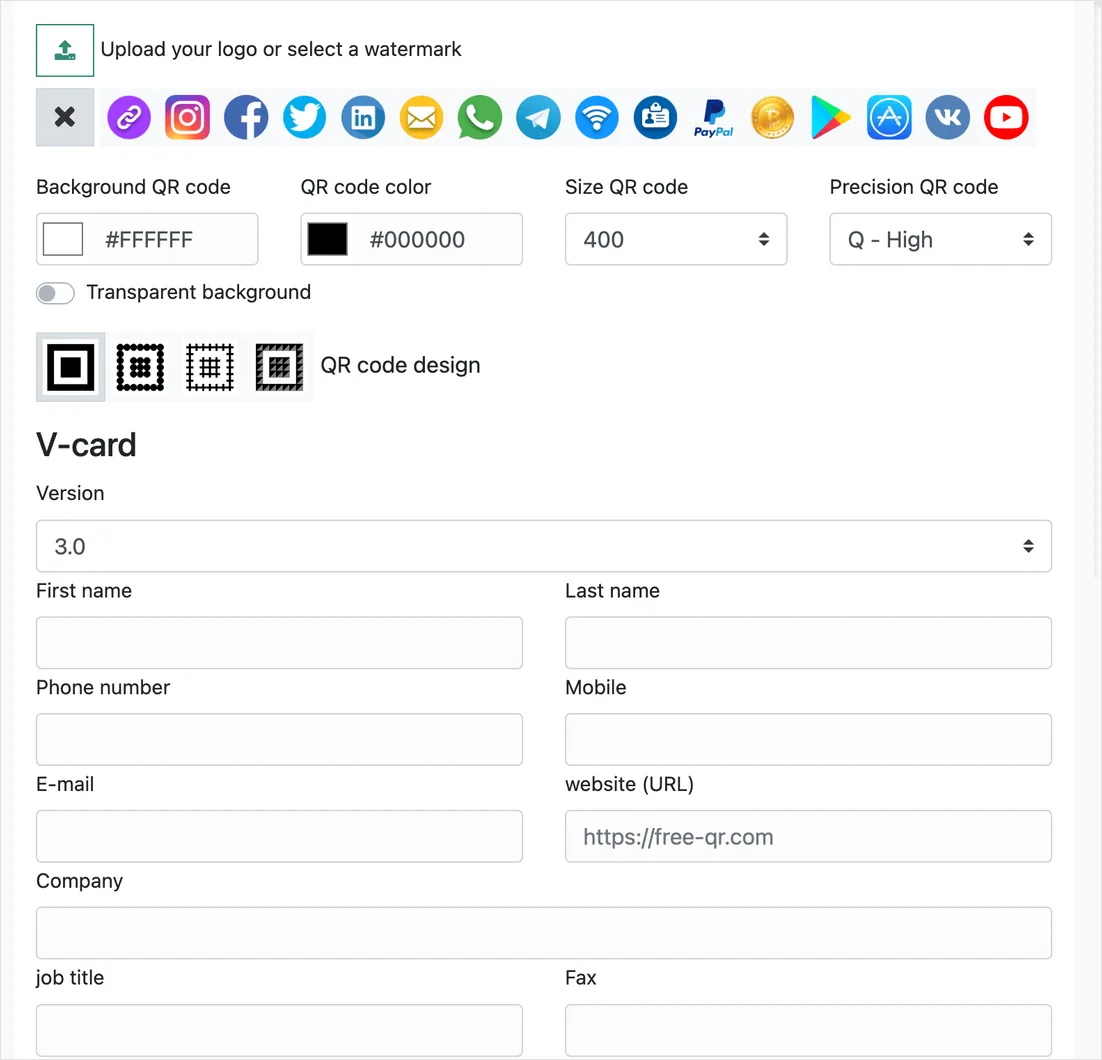
There is a second option, and at a trade show it is often the better one. A vCard code carries the contact details inside the code itself: name, job title, company, phone, email, website. Scanning it offers to save a contact straight into the phone. No network, no account, no sign-in wall.
| LinkedIn in-app code | Printed profile URL code | vCard code | |
|---|---|---|---|
| Scanned by | The LinkedIn app | Any phone camera | Any phone camera |
| Needs internet | Yes | Yes | No |
| Needs a LinkedIn account | Yes | To see much of the profile, yes | No |
| Works in print | Poorly, it is a screenshot | Yes, vector output | Yes, but a denser grid |
| Content after printing | Always current | Profile updates itself | Frozen at print time |
| Best for | Meeting somebody face to face | Badge, CV, slide, business card | Trade show handouts, field work |
The honest comparison: the profile URL code stays fresh because you can edit the profile behind it, and it fails anyone who will not sign in. The vCard code works for everybody and works with no signal at all, and it is a snapshot. Change jobs and every printed vCard is wrong, while the profile link quietly follows you. A lot of people print both, the vCard on the card and the profile code on the badge.
One more practical note on the vCard: keep the fields short. Every extra character adds modules, and a vCard stuffed with a postal address, two phone numbers and a long job title produces a grid so fine that a 3 cm print becomes unreliable. Name, one phone, one email, one URL is usually enough.
Questions that come up
Can I change where my printed code points later?
Not with a static code, since the address is baked into the pattern. If the destination might move, generate an editable code instead, which you repoint later using the ID and password the site shows once at creation. Save those immediately, because they are shown a single time.
Does the LinkedIn code expire?
The one in the app is regenerated by LinkedIn and is not something you should print and rely on for months. A code you generate from your public profile URL has no expiry and no scan limit.
Should I put a QR code on my CV?
Put it next to the printed URL, not instead of it. Applicant tracking systems parse text, not images, and a recruiter reading a PDF on a laptop cannot scan the screen with the same laptop. The code is for the printed copy on the table.
Why does my code scan on my phone but not on the printed badge?
Three usual causes: the code was exported as a small PNG and enlarged, the quiet zone was cropped by the badge layout, or the badge is laminated and the overhead light bounces straight into the lens. Reprint from the vector file, restore the margin, and tilt the badge slightly when demonstrating it.
Can I make codes for a whole team at once?
Yes. Put each person’s profile URL in a CSV and run it through the bulk generator, which processes the file in your browser without uploading the list anywhere.


Comments are closed.